
A closer look at My Financial Progress in BMO InvestorLine
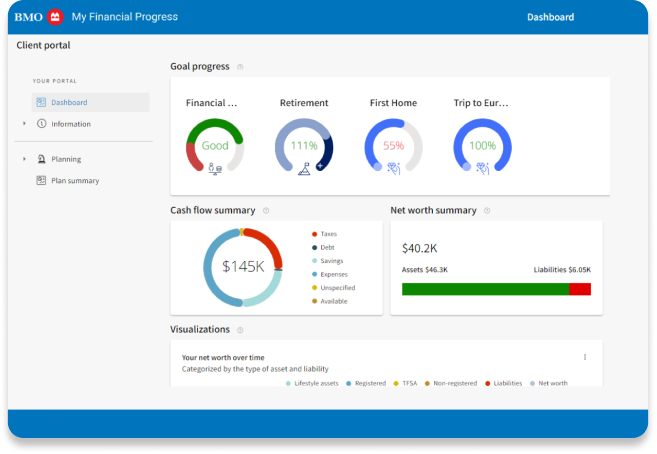
 December 15, 2025
 2 min read
Whether you're saving for something special or building long-term wealth, planning for tomorrow starts today. That's why we're so excited to bring My Financial Progress to BMO InvestorLine clients.
Whether you're saving for retirement, an education, a home, My Financial Progress is a tool that can help you:
- Set clear financial goals
- Get personalized recommendations to manage your goals
- Monitor your financial progress
- Update your plan if your situation changes
- Download reports to stay informed
Say hello to My Financial Progress
See My Financial Progress in action
Want to see what’s possible? This short demo can help you discover how easy it is to set goals, track your progress and stay on top of your financial journey.

Frequently Asked Questions
“My Financial Progress” is a digital tool available via BMO InvestorLine that helps you build a personalized plan to help you achieve your financial goals. With My Financial Progress you can set financial goals, view your current financial situation, update your plan as your situation changes, access personalized recommendations and a visual dashboard to monitor financial progress overtime to help you achieve your goals. “My Financial Progress” is a goal-setting and tracking tool only. It does not provide any financial advice.
To access the tool, sign into your BMO InvestorLine account on desktop or mobile
– Your desktop: Click the “My Progress” icon  on the right-hand side of the page to launch a half-screen “Get Started” panel.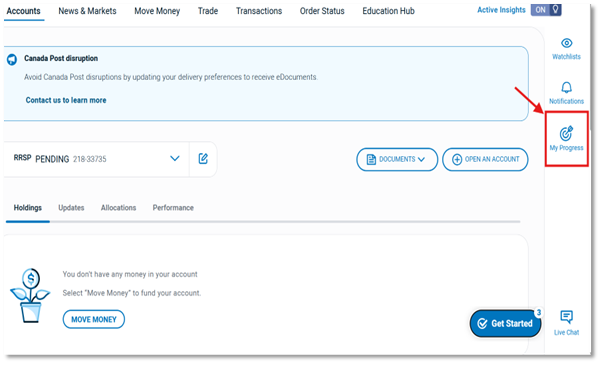
– Your mobile device: Tap the menu icon  on the top right corner and select “My Progress” to launch “See Details” screen.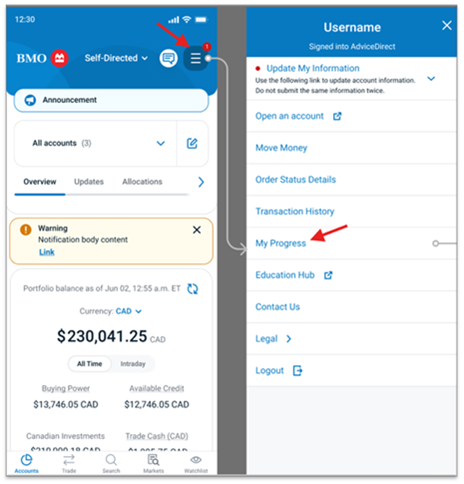
There is no additional cost to use My Financial Progress.
You can find more details about My Financial Progress Terms and Conditions and Privacy Terms here.
Your first-time view depends on whether you’ve already set goals with My Financial Progress on BMO InvestorLine or on BMO Online Banking.
– If you’re new to My Financial Progress: You’ll see the “Get Started” screen where you can:
o Get a brief overview of how the tool works.
o Review and confirm the ‘Privacy Terms’ and ‘Terms and Conditions’.
o Follow guided prompts to create your profile.
– If you’ve already set goals on BMO InvestorLine or on BMO Online Banking: You’ll see your financial progress dashboard with the list of goals you created
If it’s your first time accessing My Financial Progress, you'll need to provide some important details to create a clear financial snapshot, including:
1. Income - Multiple sources of income can be added.
2. Accounts/Liabilities - BMO account information will be prefilled. Non-BMO accounts can be added manually.
3. Assets - Add details such as your primary residence, vehicles, any investment properties, etc.
4. Pension - If you have a defined benefit pension, you can add this in the Defined Benefit tab. If you have a defined contribution pension type, you can add this within the Accounts tab.
Your BMO InvestorLine and Online Banking accounts and balances will be prefilled in My Financial Progress under the Accounts and Liabilities tabs. You can also manually add all external accounts, registered and non-registered investments, mortgages, and loans to get a full financial picture.
Yes. You can download a PDF file with a summary of your goal details, projections, strategies, and more by clicking “Download PDF Report” on top righthand corner.
To provide you with personalized offers for products and services, we may use your personal information to contact you about marketing and promotional opportunities relating to BMO or our affiliates. You can always select the unsubscribe link in the emails we send you to stop receiving them. We may also use the personal information in My Financial Progress to make automated decisions about the products and services we offer you.
To learn more about how we collect and use your personal information, please review our Privacy Code at bmo.com/privacy.
Setting up your plan can be done in just a few steps! You can make your plan as detailed as you’d like to start and add to it over time. As you add more information, you’ll get a better understanding of your financial situation and receive tailored recommendations to help you make real financial progress.
Changes you make are auto-saved, so you don’t have to worry about losing any information whenever you revisit your plan.
You can start with a basic plan and add more details over time. Each time you revisit your plan, your BMO account balances will be automatically refreshed. As you add information and move from one screen to another, your details are auto-saved.
You can add the following goal types to your plan:
• Cash Flow and Debt: This goal provides a comprehensive perspective of your overall financial situation. Instead of percentage or dollar amount indicators, it uses a unique scoring system with ratings like Improve, Fair, Good, or Great. This holistic approach allows you to observe how your individual goals contribute to a more balanced and secure financial journey.
• Retirement: This goal helps you explore strategies to reach your desired lifestyle in retirement.
• Education: This goal can be for you, your spouse/common law partner, or dependents. Costs are assumed to be indexed to inflation and to cover a 4-year program starting from the goal date. You can add multiple education goals to your plan.
• Purchase a Home: This goal helps you achieve your home ownership goals while maintaining balance with your other financial priorities.
• Upcoming Major Expense: This goal helps you plan for large expenditures without disrupting progress of other financial priorities. You can add multiple major expense goals to your plan.
• Create a Rainy Day Fund: This goal helps you plan for readily available funds to provide financial stability and peace of mind if you face unexpected circumstances, such as a job loss or medical emergency.
You can add a spouse, common law partner or dependent(s) to your plan in the Household tab. This option will appear after you enter details about your desired retirement timeline. While you can name a spouse or common law partner to your plan, they won’t have access to review or update the plan.
For dependents, you can also enter a birthday (past or future) to help you plan.
Yes, joint accounts are also pre-filed in the tool.
To add a defined contribution plan, you’ll need to select Add Account Type under the Accounts tab. Then, hover over Other Accounts and select Defined Contribution Plan. From here, you can add balance information, jurisdiction, and conversion details.
You can find your pre-filled BMO credit cards, lines of credit and loans, or mortgage details under the Liabilities tab.
Select the account to which you make regular contributions in the Accounts tab. Then, select the button beneath it and indicate the following:
• How much you regularly contribute to the account.
• The frequency and rate at which you contribute.
• The start and end date of the contribution.
The retirement expense estimates are based on 90%, 100% and 110% of the available cash flow prior to the retirement age you define in the tool. The cash flow is calculated after deducting withholdings, savings, and debt payments; this provides three options of projected expenses to help you plan for retirement. You can also specify a retirement expense amount based on your personal needs rather than selecting one of the auto-generated options.
This will depend on your preferences and what you find most important. Retirement expenses, plan preferences and risk tolerance will help inform which strategies the tool serves up first.
Yes, any updates you make to your plan will be saved and accessible each time you sign in. If your BMO account or liability balances have changed, this will automatically be updated in the tool the next time you sign in.
You can go into the tool at any time to update your plan or add or remove goals and strategies. Your data will be auto-saved.
A goal can’t be deleted if there are applied or skipped strategies linked to it. The delete icon will be greyed out, and hovering over it will display a message indicating that “Applied strategies exist for this goal”. To delete a goal, you must first remove any applied or skipped strategies from the respective goal card under the Planning tab. Once all linked strategies are removed, you can delete the goal from the respective goals card on the Information tab.
How you interpret the goal success percentage is dependent on the goal type:
Education, Rainy Day, Home Purchase and Major Expense
These goals measure progress as a percentage. The value required to meet these goals is predetermined and finite, so the percentage represents the funds allocated to the goal as a percentage of the total needed. If more money than required has been allocated to the goal, the percentage will exceed 100%.
Retirement
The Retirement goal progress percentage reflects how much of your retirement goal has been funded, based on the amount needed between your planned retirement date and expected life span. If it’s over 100%, it means your savings could last beyond your life expectancy, based on average investment withdrawals in the final six years of the plan. It doesn’t represent an increase in annual retirement income.
Cash Flow and Debt
The Cash Flow and Debt goal is scored as either Improve, Fair, Good, or Great, depending on how many key factors have been met. Since all customer situations are unique, the Financial Well-Being score considers and weighs factors, including, but not limited to:
• When an expense may occur
• Your net worth and cash flow
• Your ability to manage debt
When you apply a strategy, your goal progress will be updated in My Financial Progress and your summary will reflect your forecasted position. To help keep you on track, you can review applied strategies on your to-do list and take action.
You can check which strategies you’ve applied within two places on the tool: the To-do list tab and under the Applied section for each goal within the Planning tab. You can always go to the skipped section to re-apply skipped strategies.
Yes. You can customize a number of things in the Planning tab, including strategy amounts, time frames and more. You can also preview their impact and then apply them to your plan.
If you’ve already applied a strategy to your plan and you’d like to update it, you can also do this: Navigate to the Planning tab, select the related goal and go to the Applied tab. Once you find the strategy you’d like to update, you can select Show Settings and customize it to your preferences.
Yes, the My Financial Progress recommends strategies based on your goals and financial situation. These recommendations will appear as strategies that you can review, apply or ignore. This may be aligned to BMO products and services (e.g. saving, investing, lending, account optimization, etc.) but will not explicitly reference BMO. The selected stratergies will appear in the To-Do list once added.
For example, save $700 for 3 years in a TFSA account to support your education goal, take out a new $200K Line of credit as a rainy day fund, etc.
Depending on the recommendation, the tool may prompt you to take different actions. This will show within your To-Do list. For example:
1. Consider reducing your major expense.
2. Visiting BMO.com to learn more about a product, contact us and/or open an account.
3. Save monthly to TFSA account etc.
To ensure proper functionality, please ensure that browser pop-up blockers are disabled while using My Financial Progress.
I have access to BMO InvestorLine, but I’m still unable to access My Financial Progress. What should I do?
If you’re having trouble accessing My Financial Progress or seeing an error message, please try refreshing the page or signing in again into your InvestorLine account.
If the issue continues, please contact us for support.